
On November 18, 2025, Google released its latest AI tool, Google Antigravity.
We previously wrote an article about Jules (https://www.liberogic.jp/topics/20250602-jules/ ). This time, we were asked to try Antigravity and compare the differences between the two. Thinking, "It's been half a year already, and we've standardized on Claude Code. Why should we switch?" we played around with it for a little while.
First, download the application that matches your machine from the official website (https://antigravity.google/download).
The initial setup is in English, so we asked Gemini for help.
Antigravity Initial Setup
1. Import Settings
If you use VS Code or similar editors, you will be asked whether you want to import your settings.
- "Start Fresh" (start from scratch)
If this is your first time, we recommend this option. You can start with a clean slate.
- "Import from VS Code" (bring over from VS Code)
If you usually use VS Code, you can bring over the keyboard shortcuts and settings you're already familiar with.
2. Choose your Theme (pick a look)
- "Dark" (dark) or "Light" (light)
It's up to you. Many engineers prefer "Dark" because it's easier on the eyes.
3. Sign in to Google (link your account)
This is the most important step! Click the blue button labeled "Sign in with Google".
- Your browser (Safari or Chrome) will open. Select your Google account and click "Allow."
4. Project Setup (where to work)
When you see "Open Folder" or "New Project," select the test folder you created for testing.
- When asked "Trust the authors of the files in this folder?" in English, check the box and click "Yes, I trust the authors".
🌍 Switch the Menu to Japanese (Final Step)
Once you've completed the steps above, let's change the English menu to Japanese.
- Press
Command + Shift + Pon your keyboard (on an M1 Pro, the search bar appears instantly). - Type
display languageinto it. - Click the option that appears called "Configure Display Language".
- Select "日本語 (Japanese)".
- When asked "Restart now?", click the button, and the entire app will switch to Japanese!
Once setup is complete, you'll see an editor screen like this!
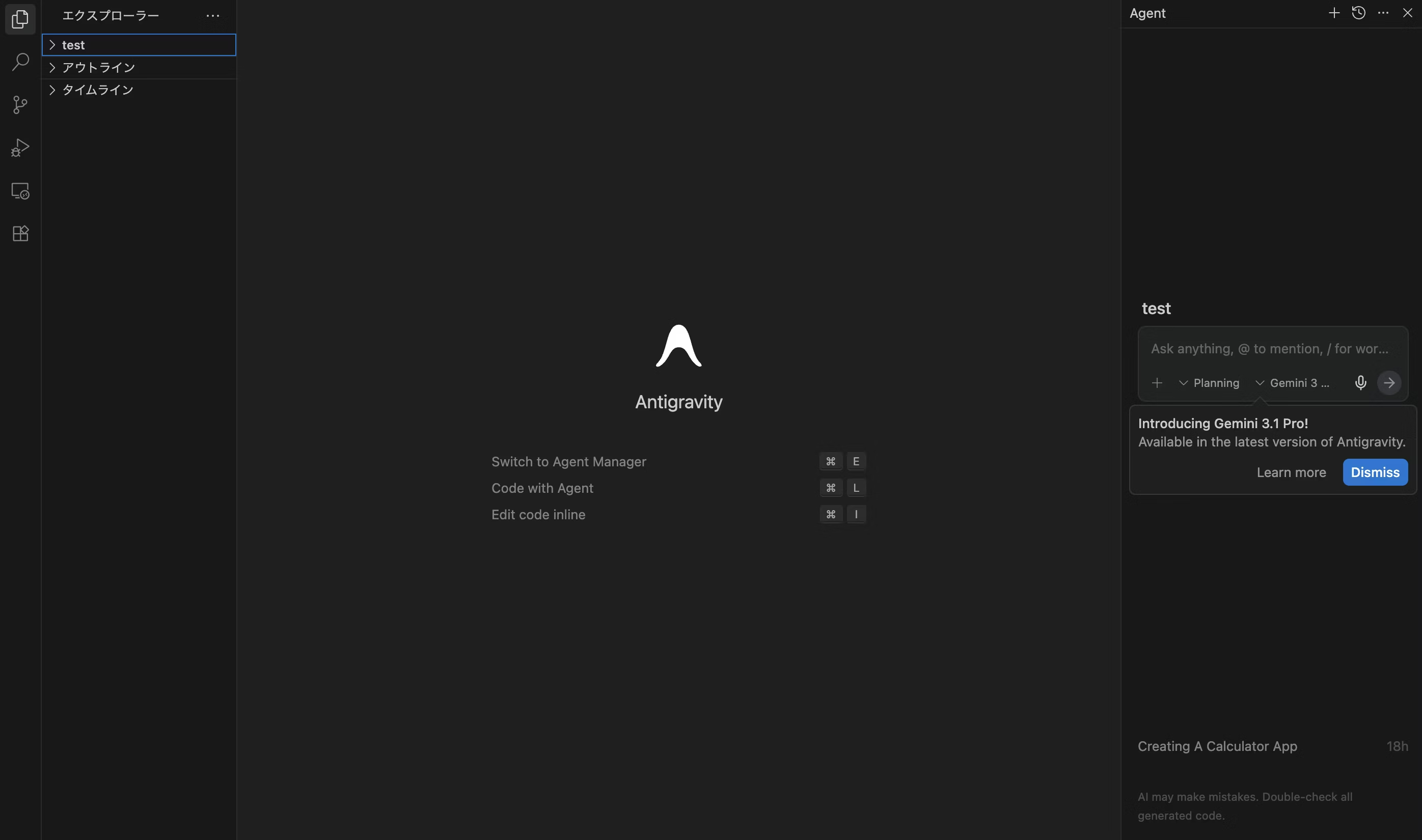
The chat box on the right side of the screen is where you enter your prompts.
At first, I entered a prompt, but the implementation didn't start at all.
It says Introducing Gemini 3.1 Pro !, but it worked once I switched to Gemini 3 Flash! Since this is a quick test, I won't dig into the details.
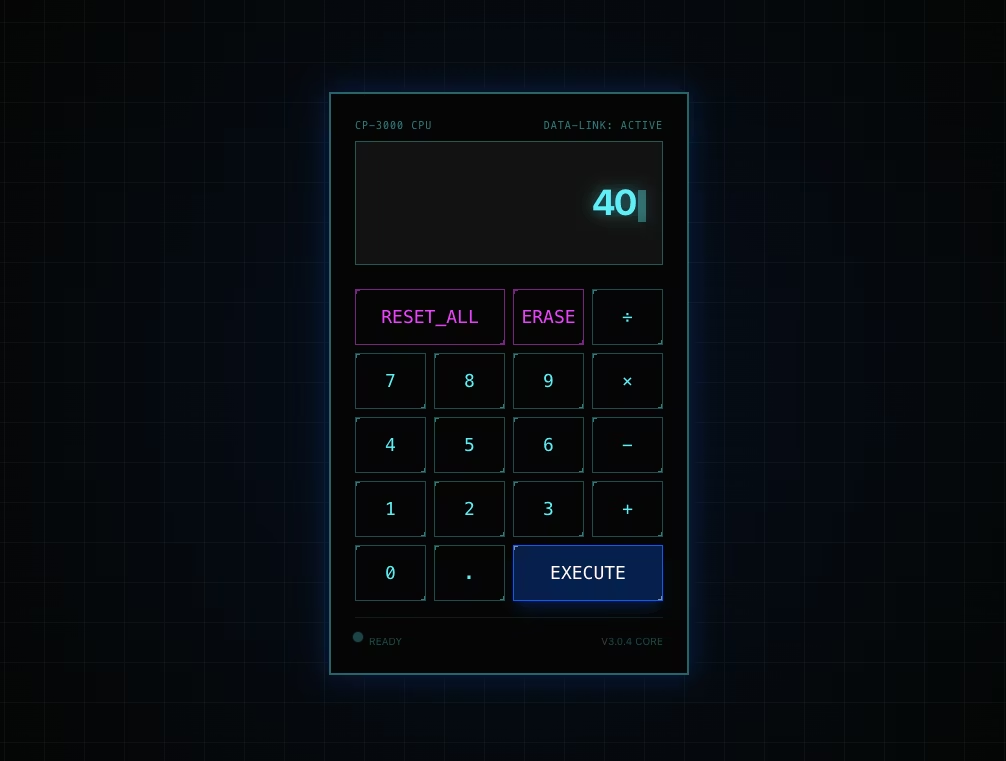
For now, I'll try entering "Build a simple calculator app."
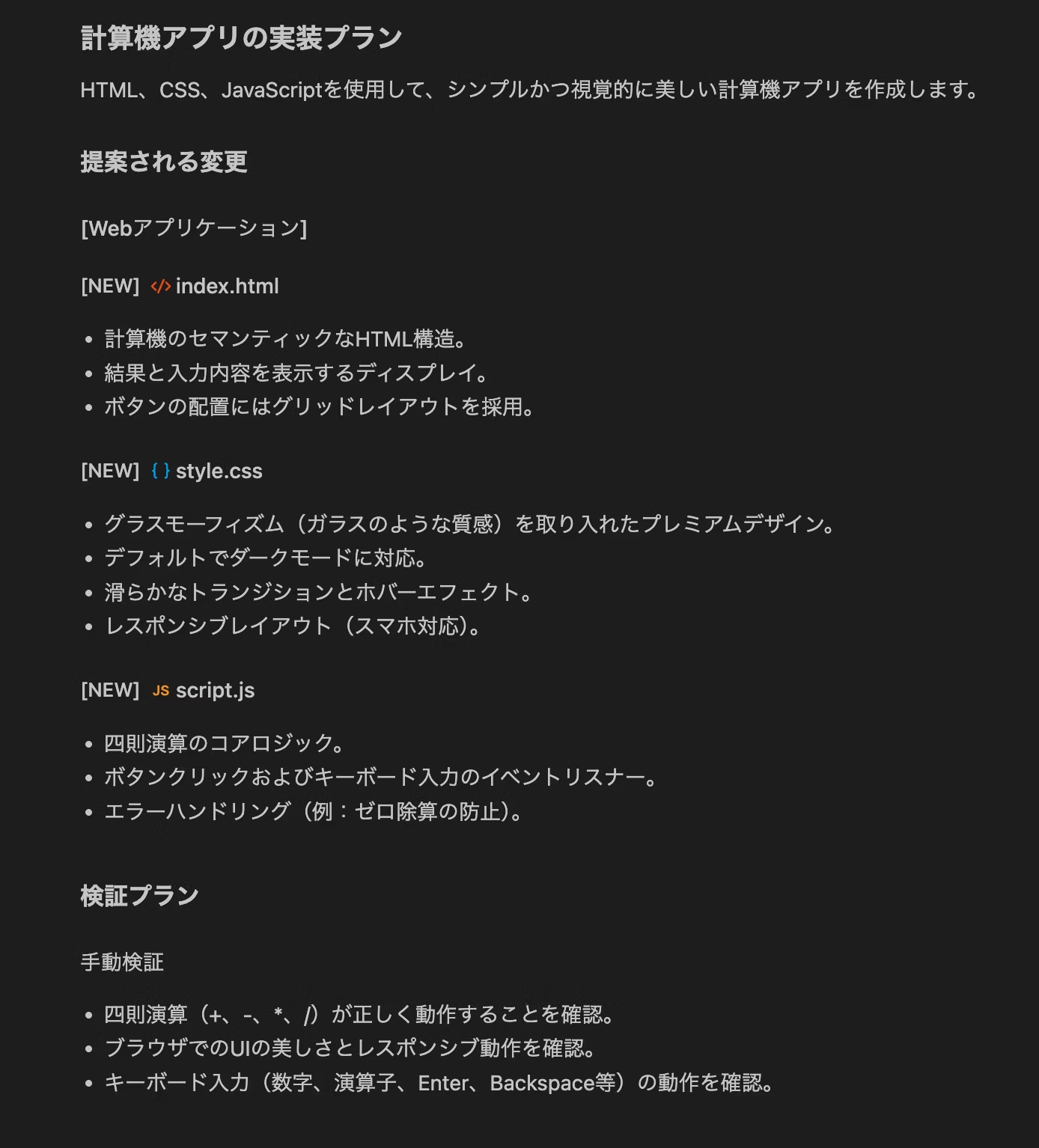
It comes up with an implementation plan like this. Once I approve it, the index.html, style.css, and script.js files are created one after another.
Once it's finished, it opens the browser and even handles verification and testing!
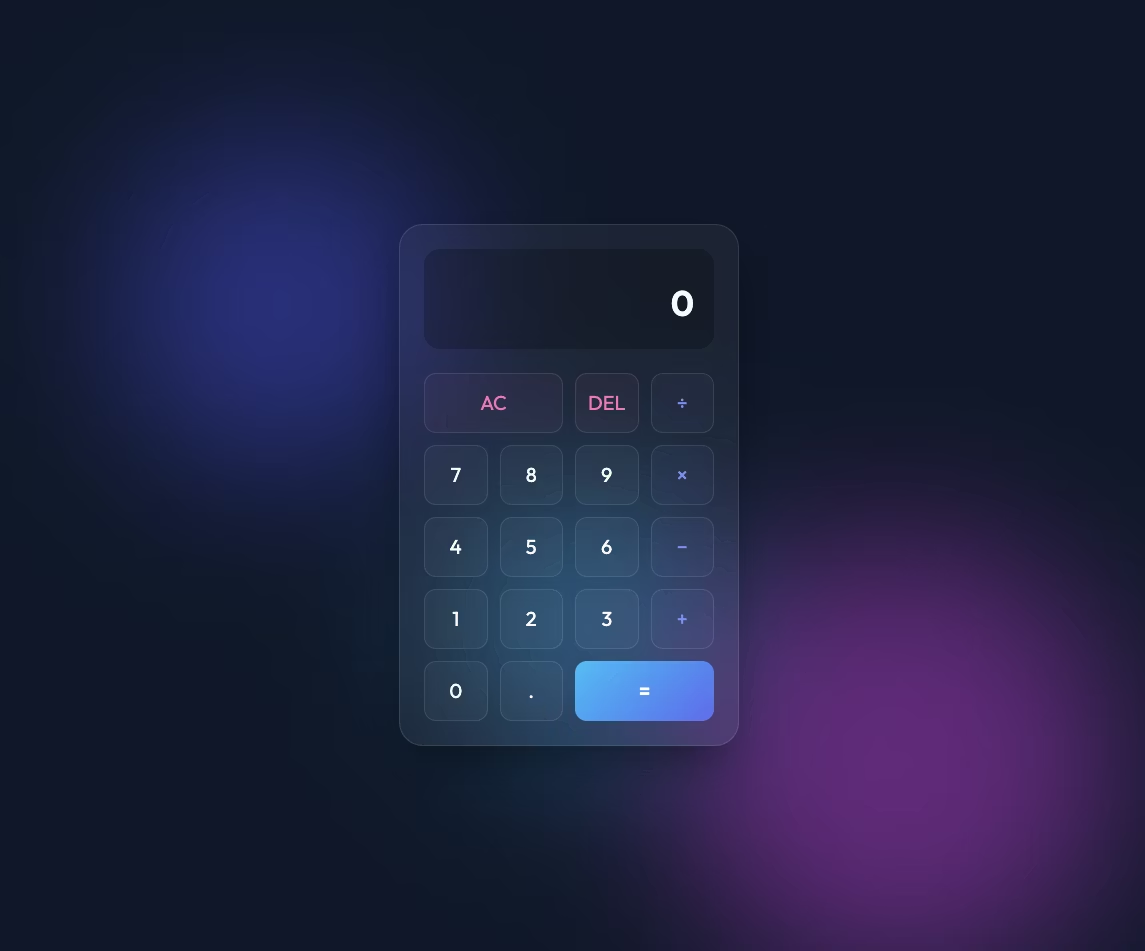
The styling looks stylish!!
I can see how impressive this is, but I'm wondering how it differs from Juels...

That's impressive! Thanks! By the way, what's the difference between it and Jules? If you have an easy-to-follow implementation example, I'd love to see one! Also, it plans out tasks and implements them just like Jules does, right?
Thank you for your question about the differences from Jules!
The biggest difference lies in our uncompromising focus on visual design and the agent's ability to verify its own work visually.
- Design: I'm designed to deliver premium designs by default, not just functional ones. These are designs that "wow" users, featuring modern color palettes, glassmorphism, animations, and more.
- Verification: After implementation, I open the browser myself and visually check and record any UI breakage or interaction issues.
- Process: Following a structure of tasks, plans, and walkthroughs, I work step by step and always make clear what I'm doing now and why.
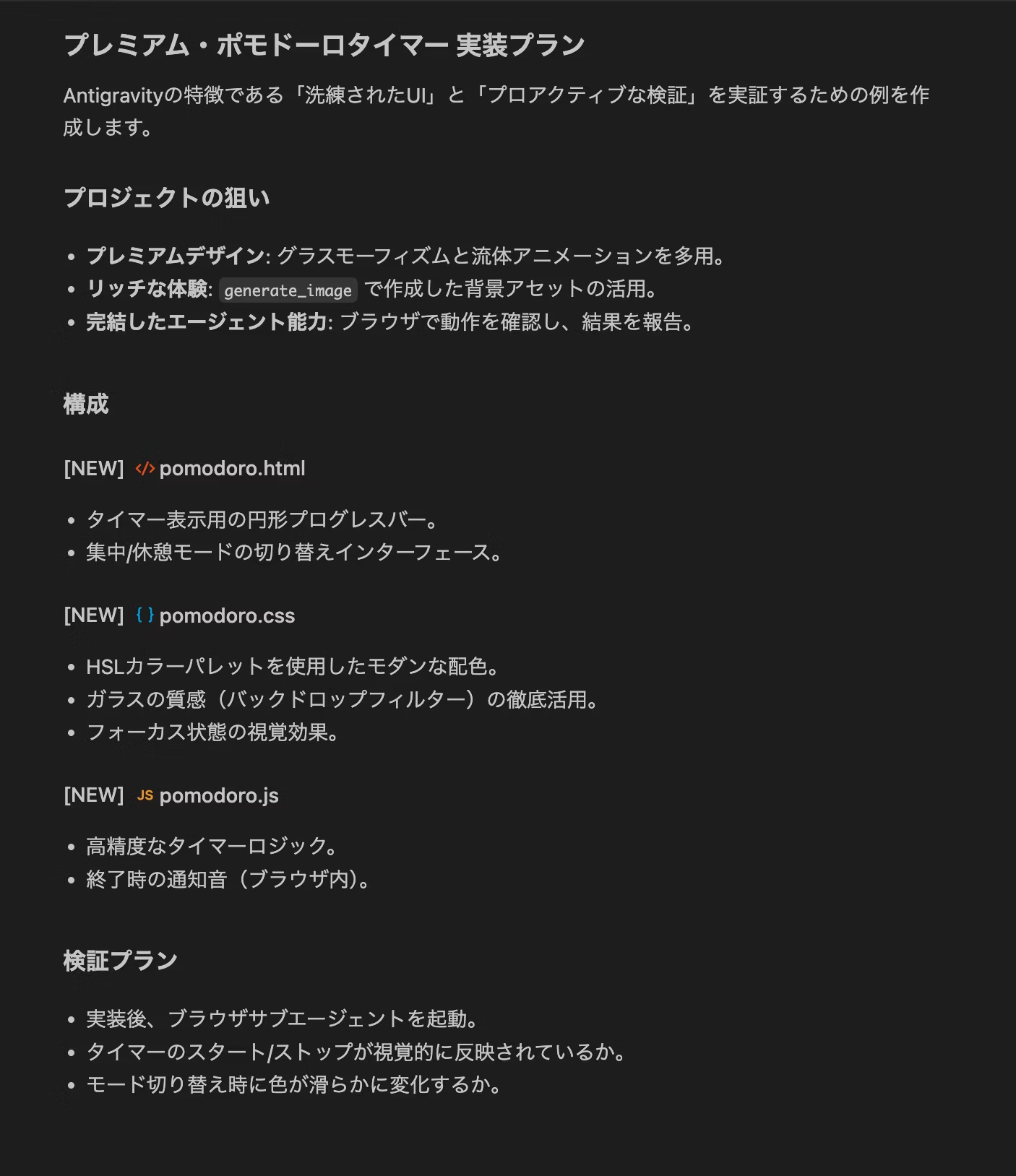
To help you experience this difference, I've put together a plan to build a highly refined "Premium Pomodoro Timer" as an implementation example. Could you review the implementation_plan.md? If it looks good, I'll proactively proceed with implementation and verification!
Implementation plan: implementation_plan.md is available here
And here is the timer that was created. It even went through verification testing!
Show video transcript (Japanese)
(指カーソルが出てきてボタンクリックの検証を行う)
(スタートボタンがクリックされタイマーのカウントダウンが始まる)
(タイマーをストップしカウントダウンが止まる)
1. Antigravity, with "eyes"
Jules is also smart, but what sets Antigravity apart is "visual verification". Writing code isn't the end of the process. Antigravity launches a browser on its own and visually checks whether the design has broken, and this process goes a step beyond previous AI tools.
2. Emphasis on Artifacts (Deliverables)
Antigravity doesn't just output code. It carefully produces documents like "implementation_plan.md". This makes it easy for users to see exactly what the AI is thinking.
3. Premium Design as the "Standard"
When asked to "build a Pomodoro timer," Jules will create a "working timer," but Antigravity aims to build "an animation-rich timer like the latest iPhone app." This desire to delight the user is the biggest difference.
🧐 When to Use Jules vs. Antigravity...
Both are excellent for building something from scratch, but the difference shows up in the following scenarios.
- Antigravity integrates powerfully with Google accounts, making it well suited for publishing the apps you build directly to the internet (such as with Firebase integration) and for quickly trying out Google's latest AI models. It's best for people who want to move fast and try the newest features.
- Jules behaves in a more "human-like" way. It excels at growing an app through ongoing conversation, such as "Build a calculator. Actually, make the background blue and add a history feature," as well as fixing complex bugs and organizing existing code.
Honestly, when I tried Jules, it only applied minimal styling. Only after I prompted it to "add decoration!" did any design appear. Antigravity, on the other hand, looks far more stylish and polished!
It seems Antigravity is the better choice for quickly laying down a foundation from zero to one.
And when I typed in "Turn this static file I created for testing into a Next.js environment!", it did the whole thing in one go! Jules didn't get anywhere because of errors, though.
I thought it's also a good option to leave the tedious environment setup to Antigravity!
You can add things afterward, like "Add this setting!" or "Add this feature!", and it even tidies up tedious configuration files like package.json and tailwind.config.js. It's really handy!
Bonus

Now that it's Next.js, use Tailwind CSS to add an animated gradient background. Also, change the font to a stylish one from Google Fonts!
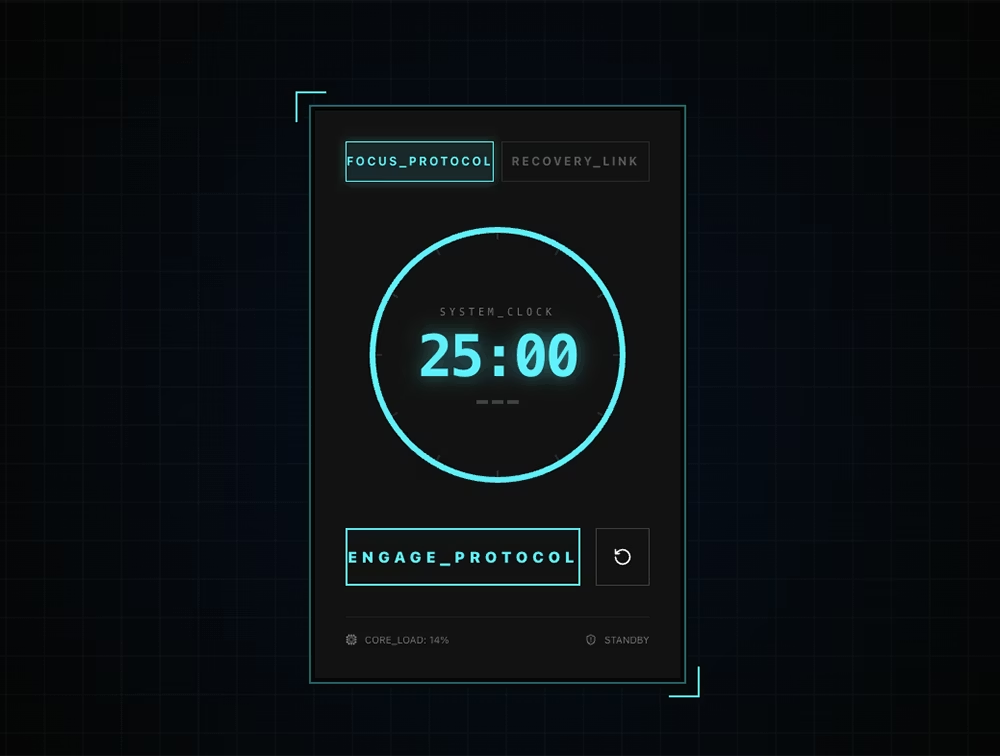
Caution!
Antigravity is even more "proactive" than Jules. It quietly installs libraries and creates files behind the scenes.
- Risk: If you run it in a folder containing an important existing project, the AI may overwrite things with good intentions.
- Countermeasure: Always run it in a
testfolder, like this time, or in a dedicated workspace. That's the golden rule.
Even a super capable tool still needs a human to check the results in the end.
Antigravity might be worth letting handle things at the mockup level, where it excels!
That said, our team uses Claude Code as the standard...




I work mainly on markup and frontend development using JavaScript, React, and Next.js. I'm always happy when a site I've been involved in launches successfully! My hobbies are playing the guitar. I love cats and roasted sweet potatoes 🐱🍠
Hirocchi
Frontend Engineer / Joined in 2022