

Hello! I'm Oga, a designer and operations manager.
I joined the company in 2015, so I'm a seasoned veteran by now, and in my spare time I write articles that I'm not sure anyone benefits from on my blog, playing a bit of a gal persona.
That said, this time I'm going to get serious and talk about something a little more earnest.
To be upfront, I have almost no hands-on engineering experience.
I've seen terminals at work, but mostly I just watched logs scroll by. I figured that typing commands and building things yourself was something only "people who can do it" would do.
And yet here I am, building everything from the network setup to a web app on a Raspberry Pi. It turns out that when you're pushed by necessity, you can surprisingly get moving.
It started with my kids and their iPads
My kids use their iPads nonstop. If left alone, there's simply no end to it.
So first, I wanted to do something about that.
Right around then, the company issued a challenge: "Build whatever you like, like an internal hackathon."
Claude Code is booming here at the moment. Every staff member has Claude as a coding partner, and the office is basically a development festival. I'm on the $25/month plan, but some power users go for even pricier plans, and the whole place is buzzing with the energy of "Let's build anything with AI."
"I've always wanted to try a Raspberry Pi (the reason is simply that it looks cool)"
"I want to solve the iPad problem the engineering way"
"I want to produce some kind of deliverable for the hackathon"
These three impulses came together to create the project: a management system that lets you force a kids' Wi-Fi on or off with a single tap on your smartphone.
I've seen a terminal now and then, but I've almost never set anything up myself.
Even so, with Claude's help, I tried my hand at building this "magic box," going back and forth on things every step of the way!
Step 1 — Setting Up the Raspberry Pi
Preparing with Raspberry Pi Imager → SSH Connection
First, I installed an OS on the Raspberry Pi 4. I installed Raspberry Pi Imager (the official flashing tool) on my Mac and wrote a 64-bit OS to a MicroSD card. Enabling SSH in the write settings turned out to be more important than it looks.
Once I connected the Raspberry Pi to the router with a LAN cable and powered it on, I could connect to it from the Mac's terminal with just this.
terminal (Mac)
ssh [email protected]The moment pi@raspberrypi:~ $ appeared in the terminal, I was genuinely moved. First, I updated the system.
sudo apt update && sudo apt upgrade -yStep 2 — Setting Up a WiFi Access Point
Configuring hostapd, dnsmasq, and iptables
To run the Raspberry Pi as a "WiFi access point," I installed two pieces of software. hostapd broadcasts the WiFi signal, and dnsmasq assigns IP addresses to devices that connect.
sudo apt install hostapd dnsmasq
In the configuration files, I set the SSID (the WiFi network name) and password. For clarity, I named it "KidsWiFi."
/etc/hostapd/hostapd.conf
interface=wlan0
driver=nl80211
ssid=KidsWiFi
hw_mode=g
channel=7
wpa=2
wpa_passphrase=(パスワード)
wpa_key_mgmt=WPA-PSK
Next, specify the range of IP addresses to assign to the devices that connect.
/etc/dnsmasq.conf
interface=wlan0
dhcp-range=192.168.4.2,192.168.4.20,255.255.255.0,24h
Finally, set up IP forwarding and NAT so the Raspberry Pi can act as the internet relay. Without this, devices connected to KidsWiFi won't be able to reach the internet.
# IPフォワーディングを永続化
echo "net.ipv4.ip_forward=1" | sudo tee /etc/sysctl.d/routed-ap.conf

# NATの設定(eth0経由でインターネットに出られるようにする)
sudo iptables -t nat -A POSTROUTING -o eth0 -j MASQUERADE
Every time the Pi restarted, wlan0 went DOWN. I wrote a systemd service file so the network configuration runs automatically at boot. This is where I cried out to Claude, "Why won't it connect again!?" and eventually fixed it.
When "KidsWiFi" appeared in the Wi-Fi list on my phone and I successfully connected to the internet, I couldn't help typing "Sensei! It connected!" into the chat (and I really did type it).
Step 3 — Building the admin interface as a web app
Implementing a phone-operable interface with Python and Flask
Now that the Wi-Fi access point is working, the next step is an admin screen that lets me turn it ON and OFF from my phone. I'm using Flask, a Python web framework, to run a web server on the Raspberry Pi. I developed and tested everything in a local environment on my Mac first, then transferred it to the Pi once it worked.
Terminal (Mac) — Setting up the development environment
python3 -m venv venv
source venv/bin/activate
pip install flask
Turning Wi-Fi ON and OFF actually works by blocking only the internet connection. The KidsWiFi signal is always broadcasting, and I use iptables, the Linux firewall, to decide whether to drop packets headed to the internet. Once written as code, it's surprisingly simple.
app.py (excerpt) — The core of the Wi-Fi control logic
import subprocess

def enable_internet():
    # ブロックルールを削除 → インターネット解放
    subprocess.run([
        'sudo', 'iptables', '-D', 'FORWARD',
        '-i', 'wlan0', '-j', 'DROP'
    ], capture_output=True)

def disable_internet():
    # ブロックルールを追加 → インターネット遮断
    subprocess.run([
        'sudo', 'iptables', '-I', 'FORWARD',
        '-i', 'wlan0', '-j', 'DROP'
    ], capture_output=True)
Internet access cuts out with just one command. One line in the terminal and my kid's iPad goes offline. I feel like I've gained some kind of amazing power (though I haven't quite figured out how to use it yet).
I built separate screens for the system: one for kids and one for parents.
The kids' screen includes a surprising roulette feature!
A one-sided time limit isn't much fun for kids either. So the idea was: if they spin the roulette themselves, maybe they'll accept the result.
Kids can react with excitement or disappointment to "How many minutes of Wi-Fi today?!" as if it's a game. It's a way to turn the often-endless negotiation over when to stop using the iPad into a bit of playful fun.
- Kids' screen
→ Roulette randomly selects 30, 45, or 60 minutes.
→ Countdown of remaining time
→ One-hour cooldown after time runs out
→ Total usage time
→ Displays remaining roulette spins - Parent dashboard
→ Password protection
→ Emergency Wi-Fi OFF
→ Homework mode (complete block)
→ Roulette spin limit
→ Forced OFF time
→ Usage history log
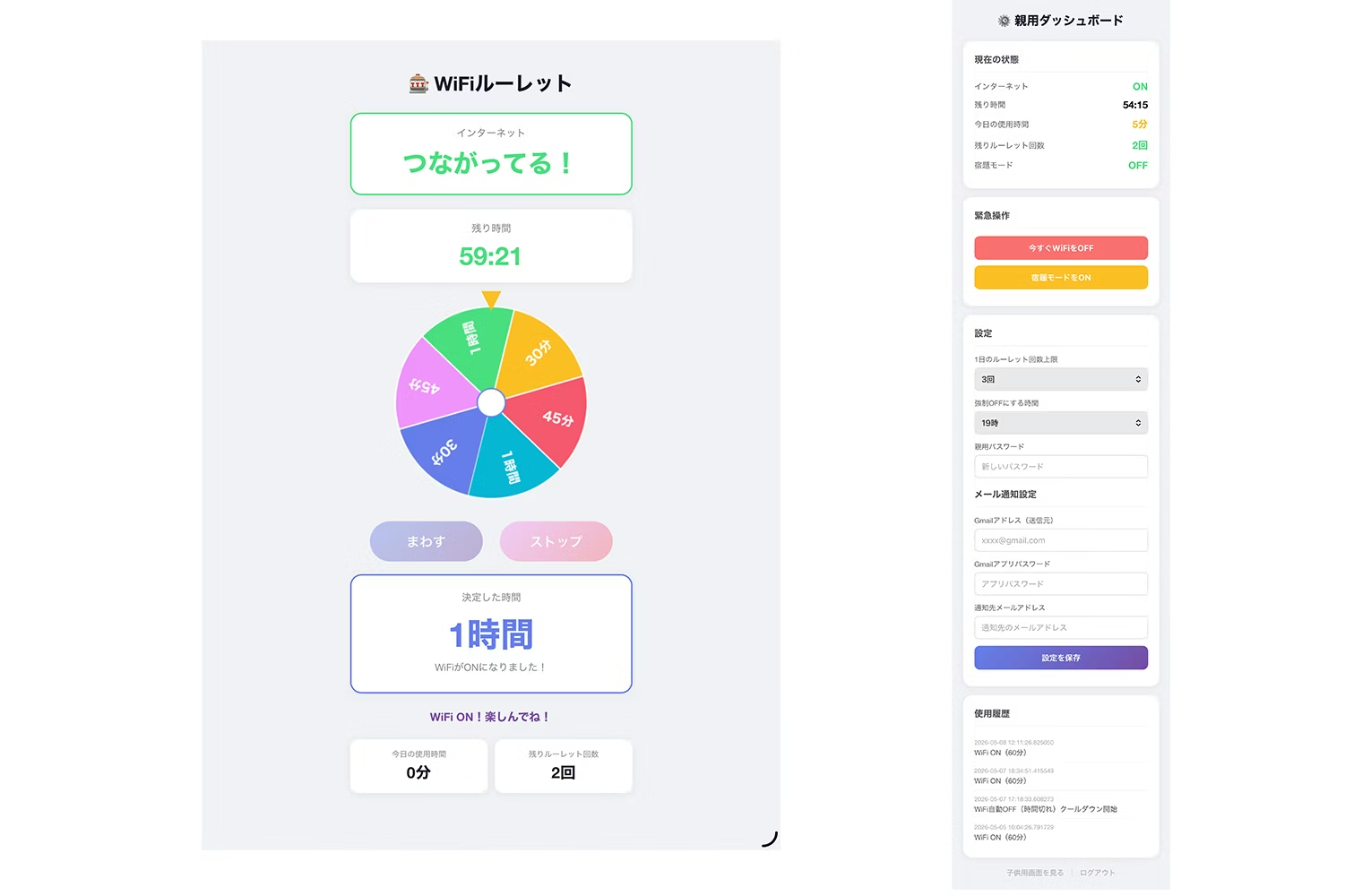
During development, I ran into the problem that "Macs don't have iptables, so I can't test this." To work around it, I created a dummy function for Mac that just prints output, so I could verify the behavior.
I worked through all of these "I'm stuck, what now?" moments by consulting Claude along the way.
By the way, since I'm a designer, I was waiting for the output thinking I'd have to arrange the screen layout myself, but it came back with a surprisingly clean layout, which left me a bit speechless. I've barely had to make any adjustments.
It's a bit frustrating, but also a bit delightful.
Step 4 — Deploy to Raspberry Pi and set up auto-start
Transfer files via SCP → Register systemd service
Transfer the finished files from the Mac to the Raspberry Pi. It's done in one go with the scp command.
Terminal (Mac) — Transfer to Raspberry Pi
scp -r templates app.py [email protected]:~/wifi-manager/Starting Flask manually every time the device restarts is a hassle, so I'm writing a systemd service file to launch it automatically. The goal is for everything to run as soon as the power is turned on.
/etc/systemd/system/wifi-manager.service
[Unit]
Description=WiFi Manager
After=network.target wifi-setup.service

[Service]
ExecStartPre=/bin/bash -c 'echo > /home/pi/wifi-manager/state.json'
ExecStartPre=iptables -F FORWARD
ExecStart=/usr/bin/python3 /home/pi/wifi-manager/app.py
WorkingDirectory=/home/pi/wifi-manager
Restart=always
User=root

[Install]
WantedBy=multi-user.target
# サービスを有効化して起動
sudo systemctl enable wifi-manager
sudo systemctl start wifi-managerNow everything runs just by turning on the power. Accessing http://192.168.4.1:5000 from a smartphone browser opens the roulette screen. Wow, it actually works.
What I took away from the experience
As someone who isn't an engineer, I was able to complete everything from network configuration to Python, and that was undoubtedly thanks to working through it in a
back-and-forth "conversation" with Claude. When I got stuck, I simply pasted the error message. When I asked "What should I do next?", it laid out the steps. When I asked "Why does this happen?", it broke down the explanation.
There's a lot of talk about "engineers developing at lightning speed with AI," but AI can also be the ultimate partner for solving the small yet pressing problems in everyday life.
"Ideas can take shape regardless of an organization's size or an individual's skill set."
Feeling that democratization of making things firsthand was the greatest reward.
And as for the main issue, my child's iPad problem... I haven't actually solved it yet.

The system is working perfectly. Now it all depends on how well I, as the parent, manage it. I'll do my best!



Based in Fukushima, I spend every day in a battle of wits with my very energetic son. Drawing on my fine arts degree, I work as both a designer and operations manager. My greatest strengths are the adaptability and quick reflexes I've built through parenting.
Oga
Designer / Operations Manager