
.png?fit=crop&w=1280&h=560&fm=avif)
In our previous article, Pitfalls When Creating Customer Forms with Google Form, we covered key challenges encountered when building contact forms using Google Form HTML customization. This time, we'll walk you through implementing a confirmation screen.
In the previous project, we implemented
input screen → submission complete screen → automatic confirmation email
.
This time, we'll cover implementing
input screen → confirmation screen → submission complete screen → automatic confirmation email
.
Conclusion: Google Forms alone cannot insert a confirmation page in the workflow
Google Forms cannot freely control the processing or transitions of submitted content via JavaScript (for security reasons, the form structure prevents JS access to its contents).
Google Forms
- cannot be designed to include a confirmation screen before submission.
- It's also impossible to send input data to other pages or insert it into HTML.
Therefore, a custom HTML form + Google Apps Script web application becomes essential.
With a Google Apps Script web application, you build with HTML and GAS instead of using Google Forms. Since I wanted to create a contact form using Google Forms 3, I decided to ask Gemini.
.png)
Can I pass the data entered on a static page (index.html) to a confirmation page (confirm.html), and then link that data to Google Forms via ?

That's a clever idea, but unfortunately that approach is essentially "not feasible." If you really need to do it: ① index.html → Save the values entered in the form to sessionStorage using JavaScript. ② confirm.html → Read and display the values from sessionStorage. ③ POST via to Google Forms' formResponse (customized using entry.xxxxx) Note that this method uses an unofficial approach to formResponse, and it won't work for users with JavaScript disabled, so be aware of these drawbacks.
Plus JavaScript implementation!
Now let's move on to the implementation method using JavaScript.
① index.html: Create input page
First, create a contact form on the input page. At this point, do not enter the entry.xxxx value from Google Form.
<form id="form">
  <input type="text" name="category" placeholder="お問い合わせ種類">
  <input type="text" name="name" placeholder="お名前">
  <input type="email" name="email" placeholder="メールアドレス">
  <button type="submit">確認</button>
</form>

<script>
  document.getElementById('form').addEventListener('submit', function (e) {
    e.preventDefault();
    const formData = new FormData(e.target);
    for (const [key, value] of formData.entries()) {
      sessionStorage.setItem(key, value); // sessionStorage に保存
    }
    window.location.href = '/inquiry/confirm.html';
  });
</script>
When the confirmation button is pressed, save the values entered in the form to sessionStorage using JavaScript, then navigate to the confirmation page /inquiry/confirm.html.
② confirm.html: Create confirmation page
Pass the values saved in sessionStorage into class="confirmBlock".
Then, enter the entry.xxxxx value from Google Form in the form directly below.
<div class="confirmBlock">
  <p>お問い合わせ種類: <span id="category"></span></p>
  <p>お名前: <span id="name"></span></p>
  <p>メールアドレス: <span id="email"></span></p>
</div>

<form action="<https://docs.google.com/forms/d/e/1FAIpQLSc-.../formResponse>"
      method="POST" target="hidden_iframe" onsubmit="submitted = true;">
  <input type="hidden" name="entry.1234567890" id="categoryInput">
  <input type="hidden" name="entry.2345678901" id="nameInput">
  <input type="hidden" name="entry.3456789012" id="emailInput">
  <button type="submit">送信</button>
</form>

<iframe name="hidden_iframe" style="display:none;" onload="if(submitted) window.location='/inquiry/complete.html';"></iframe>

<script>
  // 表示とフォームへの挿入
  ['category', 'name', 'email'].forEach(key => {
    const value = sessionStorage.getItem(key);
    document.getElementById(key).textContent = value;
    document.getElementById(key + 'Input').value = value;
  });

  let submitted = false;
</script>
Why place an input form on a confirmation page?
It's because we use Google Form's formResponse with this form!
Hide the form itself using type="hidden".
Here's what the actual confirmation page looks like

Remove type="hidden" and a customized Google Form will be hidden here!
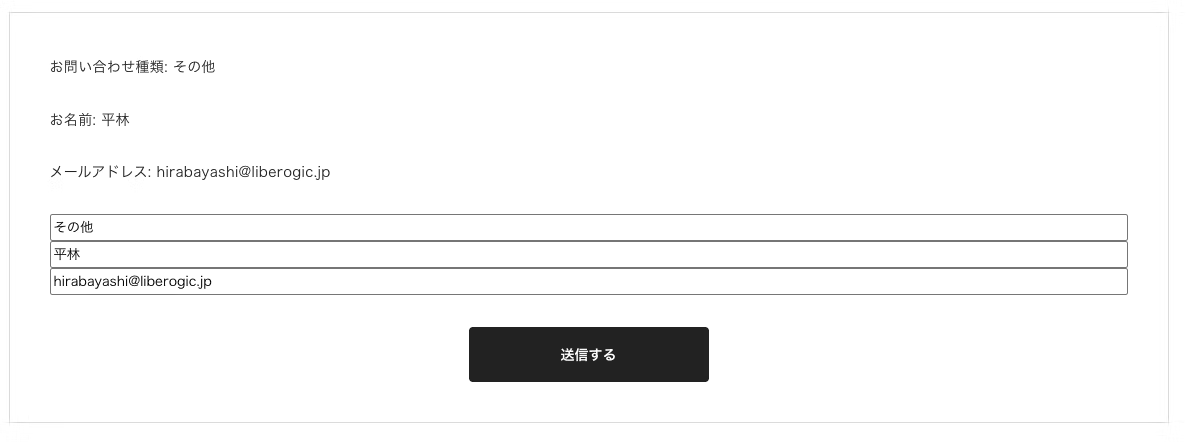
When the submit button is pressed
<iframe name="hidden_iframe" style="display:none;" onload="if(submitted) window.location='/inquiry/complete.html';"></iframe>
Navigate to the completion page complete.html and you're all set!
The flow is: take the values entered in index.html, pass them to the Google Form on confirm.html, and submit.
Since it's a customized Google Form, you can also use aggregation spreadsheets and send automated reply emails with Google Apps Script.
Summary
A "confirmation screen," which is difficult to achieve with Google Forms alone, can be flexibly implemented using JavaScript. *Though the source code will be visible, mind you 💦
With a bit of customization, you can significantly enhance the appearance and usability, so why not take that extra step?




I focus on frontend development with markup, JavaScript, React, and Next.js. I'm always happy when a site I've worked on goes live successfully! My hobbies are playing guitar, and I love cats and roasted sweet potatoes 🐱🍠
Hiraicchi
Frontend Engineer / Joined 2022