

It's a bit disappointing to see MW WP Form, a Japanese-made WordPress plugin that many people relied on for a long time, being discontinued. It was adopted by many organizations and corporate websites, so it was a trusted plugin.
Some clients can't justify the cost of developing a secure mail form separately or implementing one through a SaaS service. Against that backdrop, we received a request to switch the contact form to Google Forms. Since we wanted to make the most of the existing design, we decided to embed Google Forms into the page, and we went ahead and implemented it!
Plenty of guides are published across the web, so we had to verify things as we went, but the integration itself was very straightforward. There were a few spots that gave us trouble, so this time we'd like to share those key points!
Workflow
- Customizing Google Forms for a Static Page
- Redirecting to the Thank You Page with JavaScript After Form Submission
- Sending Auto-Reply Emails to Inquirers with GAS
Stumbling Points
- When using GAS to send auto-reply emails, retrieving the form responses via "namedValues" returns undefined
- The sender of the auto-reply email shows my own address.
About customizing Google Forms
Google Forms can do more than be embedded as-is. You can also integrate them into forms built with HTML/CSS and customize the design!
This is our visitor check-in management sheet, and its form section also uses an embedded Google Form.
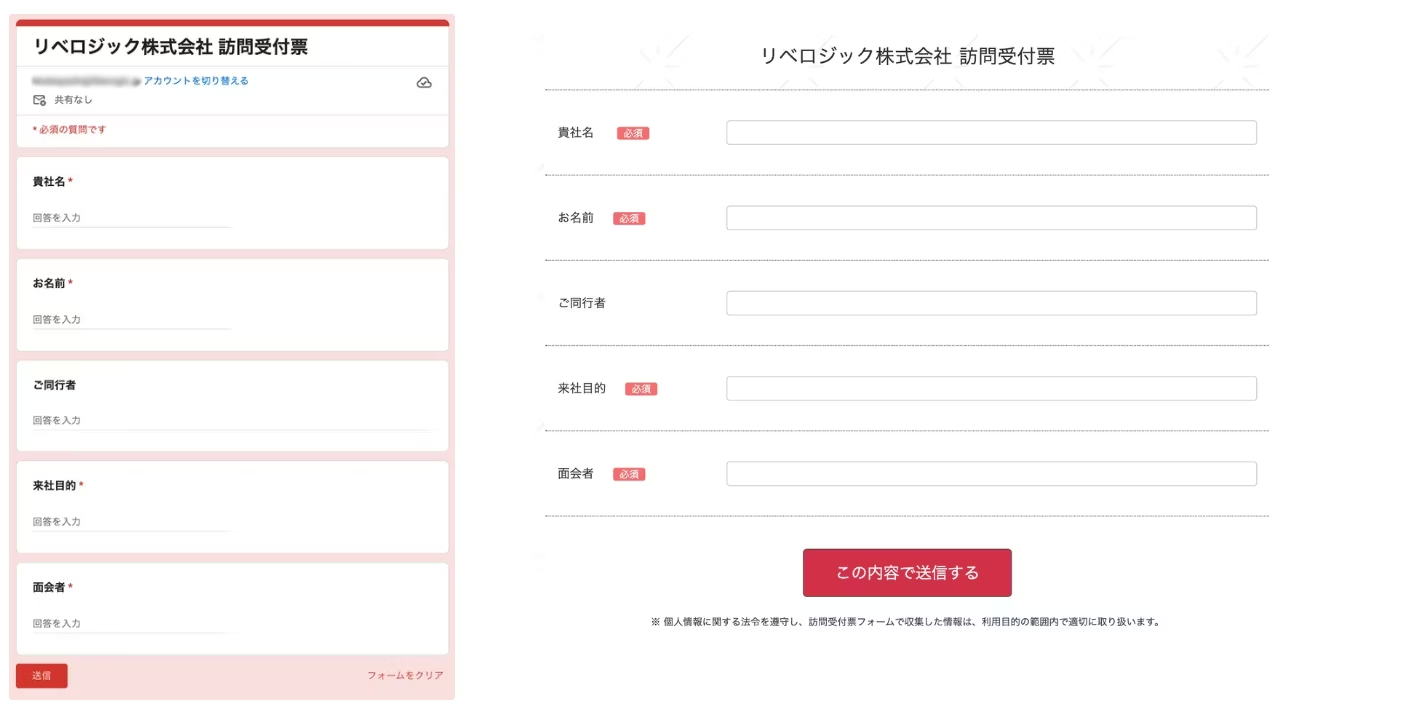
This article does not cover embedding customizations in HTML or how to set up a completion page redirect after submission.
Stumbling point #1:
In the GAS script that sends the auto-reply email, the "namedValues" used to retrieve the form responses is undefined
You can use Google Apps Script (GAS) with the spreadsheet linked to your Google Form responses to send automatic emails.

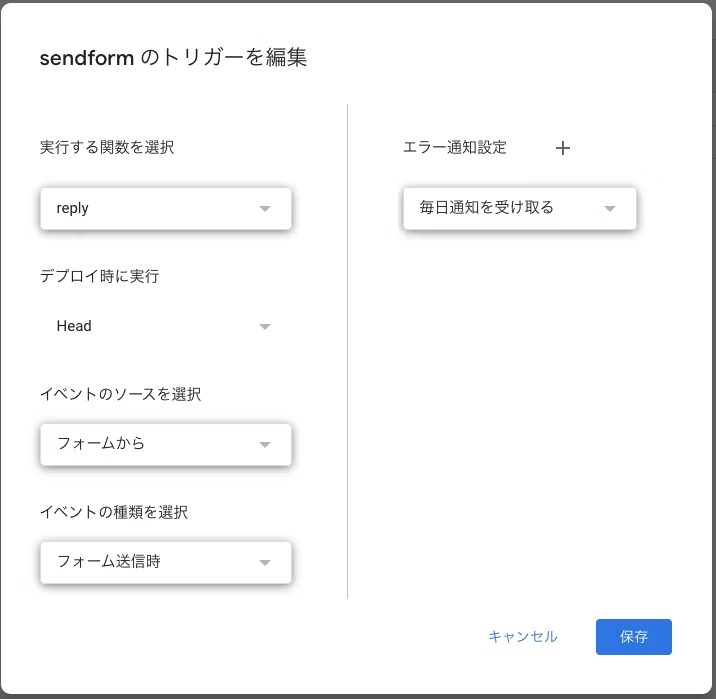
When the contact form's submit button is pressed, a script is triggered that reads the information submitted to the linked spreadsheet and inserts it into the email.
function reply(e) {
  // フォームの回答を取得
  const name = e.namedValues['お名前'][0];
  const email = e.namedValues['メールアドレス'][0];


  // 自動返信メール件名
  const subject = '【テスト】お問い合わせありがとうございます';

  // 自動返信メール本文
  const body = name + '様\n' +
    '\n' +
    '下記の内容で申し込みを受付いたしました。\n' +
    '\n' +
    '【お名前】\n' +
    name + '\n' +
    '\n' +
    '【メールアドレス】\n' +
    email + '\n' ;

  // メール送信
  MailApp.sendEmail({
    to: email,
    subject: subject,
    body: body
  });
}
I expected the script to send the email, but it returned an error.
TypeError: Cannot read properties of undefined (reading 'お名前')at reply(reply:3:29)
The first item, "お名前" (Name), was not found. Hmm.
I should be able to get e... Let me check below.
function reply(e) {
  Logger.log(JSON.stringify(e));
}
It returned null. Why?
Looking into the GAS event object namedValues...
Note: Use this form submit trigger together with SpreadsheetTriggerBuilder.
Apparently, only spreadsheet triggers can be used here! So this time I'll use response instead.
function reply(e) {
  // フォームの回答を取得
  const responses = e.response.getItemResponses();
  let name = '';
  let email = '';

  // 回答をループして必要な項目を抽出
  responses.forEach(response => {
    const itemTitle = response.getItem().getTitle(); // 質問のタイトルを取得
    const answer = response.getResponse(); // 回答を取得

    if (itemTitle === 'お名前') {
      name = answer;
    } else if (itemTitle === 'メールアドレス') {
      email = answer;
    }
  });

  // 自動返信メール件名
  const subject = '【テスト】お問い合わせありがとうございます';

  // 自動返信メール本文
  const body = name + '様\\n' +
    '\\n' +
    '下記の内容で申し込みを受付いたしました。\\n' +
    '\\n' +
    '【お名前】\\n' +
    name + '\\n' +
    '\\n' +
    '【メールアドレス】\\n' +
    email + '\\n';

  // メール送信
  MailApp.sendEmail({
    to: email,
    subject: subject,
    body: body
  });
}
Note that the contents of the event argument e (properties and methods) differ depending on whether the trigger is configured in Google Forms or Spreadsheets.
- GoogleForms
e.response.getItemResponses() - Spreadsheet
e.values e.namedValues
The rewritten script successfully sent the email!
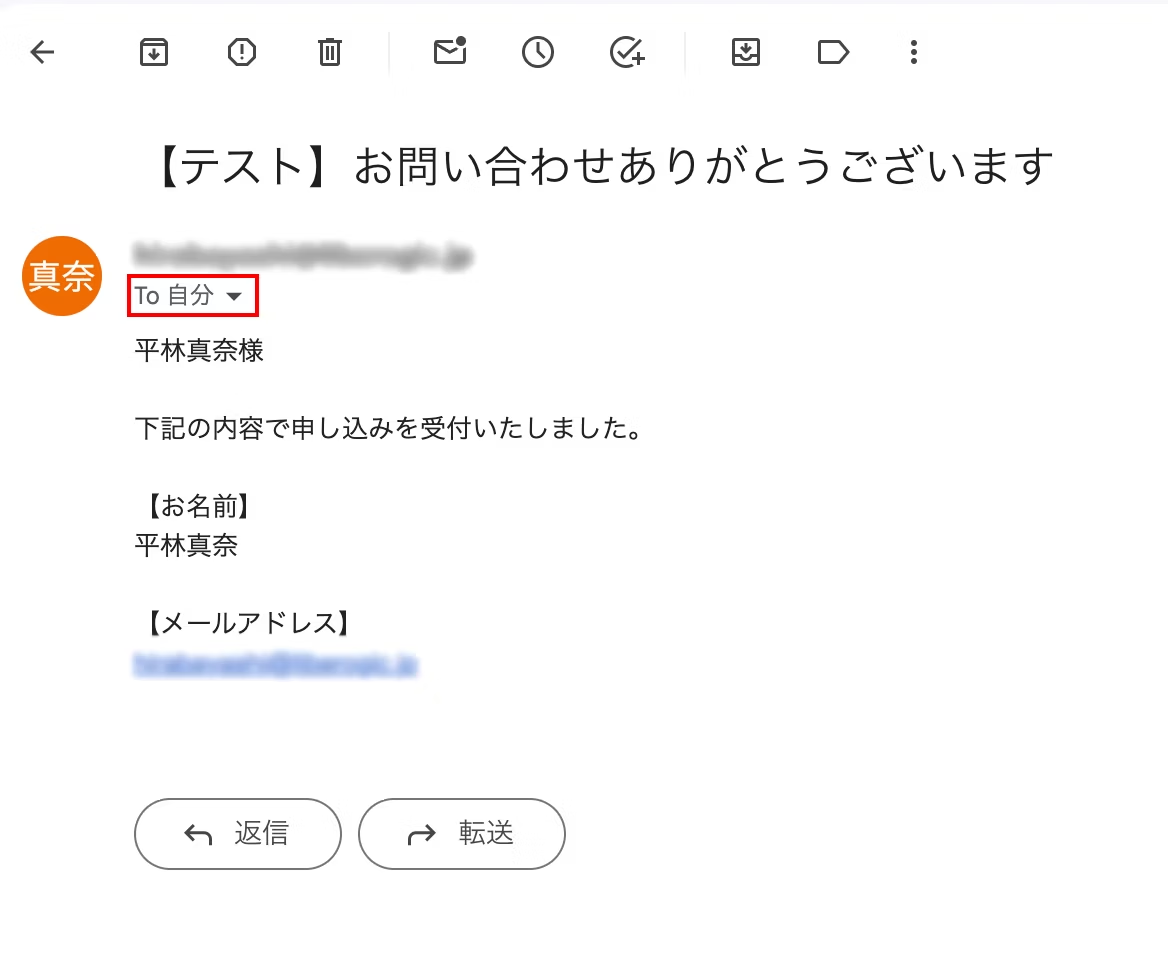
...But on closer look, the sender is my own address. This means automatic emails would be sent from my address to customers.
Pitfall #2:
Auto-sent emails show my address as the sender
- In GAS, you must always set which Google account the script runs under.
- When GAS sends an email, it is sent from the Gmail account of the person who runs the script.
For this project, the client invited my account to edit the Google Form, and I implemented it that way.
As a result, I am currently the one running the auto-sent email script, so emails are sent from my address.
To use the client's address as the sender, the setting must be reconfigured from the owner account. Also, if the client requests that [email protected], a dedicated inquiry address on their side, be used as the sender, I'm not sure how to set that up...?

Solution
- Have the client set up
[email protected], the inquiry address, as an alias on their Gmail account. - Reconfigure the trigger settings from the owner account.
- Add a custom domain email address to the account, and, in the script's
MailApp.sendEmail(), add the optional from parameter and specify the address.
GmailApp.sendEmail(email, replySubject, body, {
    from: 'info@example.com'  // 追加した送信元アドレス
  });
Adding a custom domain addressWhat is it?
By adding an account, you can send emails using the [email protected] address.
In other words, when sending from Gmail, you can select a sender named "[email protected]". It works like a subaddress.
If you don't add an account, you cannot freely customize the sender as long as you use a Gmail account.
In that case, you will need to use an external SMTP server (e.g., SendGrid, Amazon SES).
So the simplest and best workflow is:
have the owner account add the [email protected] address for inquiries → set up the trigger from the owner account.
Keep in mind that automated emails are sent as Gmail, so they will accumulate in the "Sent" folder.
Note: If you don't want your Sent folder to fill up, you may want to create a dedicated account instead.
Summary
Google Forms has a basic auto-reply feature of its own, but you cannot customize the email subject or body.
With other add-on methods, the free version is limited to 20 automatic replies per day.
On the other hand, GAS lets you build a highly flexible and extensible solution while keeping costs down!!
Benefits of Using GAS
- Easy email customization
- The content and recipients of the emails sent can be automatically changed based on the form responses.
- You can also send HTML-designed emails, so the results look polished.
- Integrates with Google services
- Form responses are automatically saved to Google Sheets, making it easy to aggregate and manage data.
- Automatically create events in Google Calendar and set reminders.
- Organize and save files in Google Drive for effortless data management.
- No additional cost
- Available for free within Google Workspace.
- Since no external services are required, operating costs stay low.
- Automated and fast
- Send emails and save data immediately after a form is submitted.
- Multiple processes can also be run together in a single batch.
- Secure data management
- Since all processing is completed within the Google account, there is less concern about data leaking outside.
- Security is also solid, so you can rest assured.
- Flexibly adaptable for different uses
- Settings can easily be reused for new forms as well.
- With just a small code change, you can add new features or customize the behavior.
Using GAS, you can achieve flexibility, extensibility, and cost efficiency while operating securely within the Google services ecosystem. It is a powerful option, especially when detailed processing or customization based on form responses is required.
This time, the confirmation screen was out of scope, so we didn't implement it. However, I'd like to try it next time if a request comes in. I'll write a memo-style article about it then!
If you're facing issues with revising or migrating your contact form, please feel free to consult us!
Reference site: Zenn, article by ryotoitoi: https://zenn.dev/ryotoitoi/articles/3cedb115d816e5



I work mainly on markup and frontend development using JavaScript, React, and Next.js. I'm always happy when a site I've been involved in launches successfully! My hobbies are playing the guitar. I love cats and roasted sweet potatoes 🐱🍠
Hirocchi
Frontend Engineer / Joined in 2022