

When design parts are divided among team members in Figma, you can run into unexpected problems. Have you ever struggled with componentized icons whose colors fail to switch properly?
This article clearly explains the causes and solutions for the "icon instance color not reflecting" issue that many Figma users encounter.

My senior turned the button I made into a component! And the icon part can be swapped too!! Amazing! But there aren't enough icons, so I'm going to register more icons as components and make this into an easier-to-use component!
I silently kept making icons.

Huh? The icon component isn't switching properly... I'm building it the same way my senior did, so why won't the colors switch?

Well, the problem is how you made your icons!

Senpai! How do I get the colors to change?

Hmph, alright! I'll teach you the secret to switching Figma icons. Take good notes and drill it into your head!

Yes! I'll do my best to remember this!
Why does the color carry over? How Figma's override mechanism works
When building a button in Figma, it's common to set up the icon area so it can be swapped using instance properties. However, it's also not uncommon to run into issues where the color you set doesn't carry over, or changes on its own, once you switch the icon.
Have you ever run into the problem where you swap an icon in Figma and the color you set doesn't apply or stays the same? This article explains the causes and how to fix them in a clear, easy-to-follow way.
To make colors switch correctly when you swap icons, check the settings on both the icon side and the button side.
First, Check the Button Component Structure
First, let's look at a setup like the one below to understand how color overrides happen.
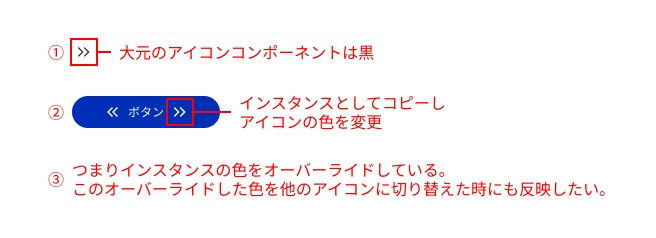
1. The original icon component is black
2. Inside the button, an instance is copied, and only its color is overridden
3. In this state, if you swap to a different icon, the icon color may revert to the default color instead of white
tips: Understanding the relationship between master components and overrides
The most fundamental caveat is that overridden properties will no longer reflect changes made to the master component.
Overridden parts: When you change the color or text on an instance, that part becomes independent. Even if you later change the same part of the master component, the change will not apply to that instance. Overridden values (fill and stroke colors, text, etc.) take precedence.
Non-overridden parts: Properties you have not changed (e.g., padding and margin) will continue to reflect changes made to the master component.
A particular caution applies when you change the layer structure of a master component. If you rename a layer, or delete a layer and add a new one, Figma may treat it as a different element, and instance overrides may be reset.
With that in mind, let's look into why the icon color does not switch.
Cause 1: Mixing Fill and Stroke settings
Even icons that look the same can be built with either Fill or Stroke, and in Figma these are treated as entirely different properties. As a result, if you switch from an icon drawn with fills to one drawn with stroke weight, color overrides may not be applied correctly.
Example:
Icon A

Icon B

- Icon A: An outlined icon built with fills
- Icon B: An icon whose outline is drawn with strokes
As you can see, when icons are drawn in different ways, the color results also differ, so it is important to standardize the drawing method. When you click the Icon B icon, Fill is set to white, but since this icon component is built only with strokes, the color does not get replaced. In fact, the white is properly applied to the fill layer (since there is no fill element, the white has nowhere to go...).
✅ Solution:
Make it a rule to create all icons as fills. Icons drawn with strokes should always be outlined (command+shift+O) and converted into filled objects. This also makes them easier to handle during implementation.
At Liberogic, when we implement icons, we either place the SVG path into a CSS variable or incorporate them using Astro Icon, so we standardize on fills across the board.
If icons remain as strokes, scaling them up or down changes the stroke width, which can break the design. Unless there is a specific reason otherwise, outlining the icons and standardizing on fills is the best approach!
When an icon is built only with strokes, the stroke size stays the same when the icon is scaled. For simple paths such as arrows, this is rarely a problem, but for complex icons, they often become cluttered at 12px or look stretched and awkward at 80px.

Icons built with strokes do not scale their stroke width proportionally when resized, so outlining them is the best option. If you want to keep the pre-outlined version, place the original data near the component.
Even when strokes are combined and converted to fills, problems often occur, such as certain parts not scaling correctly.

Cause 2: Layer names do not match
In Figma, when you swap a component instance, styles and properties are carried over to elements with the same layer name.
Example:
Icon A

Icon B

- Vector layer name of Icon A:
Vector - Vector layer name of Icon B:
Vector2
When layer names differ like this, Figma treats them as separate objects, and the overridden styles won't apply correctly.
✅ Solution: Unify the layer names used in icons (e.g., make them all Vector).
For now, just give all the path layers you want to color the same name!
Cause 3: Layer structure (hierarchy) differs
Even after unifying layer names, swapping may still fail to work correctly. In that case, differences in layer structure may be the cause. If the number or structure of layers differs between the source and target of an instance swap, properties may not map correctly. However, if the layer names are the same, minor hierarchy differences are often not a problem.
Example:
Icon A

Icon B

Icon C

- Icon A is outlined and combined into a single vector, labeled "Vector
(path)" (the base icon). - Icon B's hierarchy is "Flame
(Flame)> Vector(path)" → OK (the color is inherited by the path named "Vector"). - Icon C's structure is "Vector
(Flame)> Flame(path)" → NG (the color change set on the Flame layer named "Vector" appears).
As such, care is needed with style application when a layer named "Vector" contains a group, as the structure affects how styles are applied. Also, even with the same name, color changes apply only to the top-level layer (see Icon C); the color change is not reflected in the second-level Vector.
✅ Solution: Rather than just matching layer names, design the path structure so that the styles are applied as intended, which helps avoid problems.
As long as vector names match, things often work even if the structure differs slightly. However, in team projects, it's helpful for others who join later to keep the internal structure as consistent as possible.
Cause 4: The source component and the number of Fills or Strokes differ

For single-color icons, you don't need to worry if you merge layers or unify layer structures and names. However, when switching to icons that differ from the source component in the number of Fills or Strokes, only some colors may switch while others stay the same, and results may not match your intent. As a rule, keep icons to a single color. If you need two colors, you'll need a workaround, such as creating a separate icon variable for two-color icons.
✅ Solution:
- Do not mix single-color and multi-color icons.
- If you need multicolor icons, duplicate the icon component with a variable and create a version for the two-color icon.
- When using multicolor icons, avoid using color overrides in principle.
Even if you override a single-color icon, only one color can be changed, so be careful!
Cause 5: Effects of blend modes and masks
If an icon uses a mask or a special blend mode (such as Multiply), changing its color may not produce any visible change.
✅ Solution:
If you're using masks or blend modes, flatten or merge the objects to convert them into simple path objects that look the same as they do now, then turn them into components.
Even in this case, it's safer to finish by outlining or otherwise simplifying everything into plain paths. If you're using Multiply, it's also a good idea to convert it to paths thoroughly using live trace or a similar tool.
Verification summary
Cause | Details | Solutions |
|---|---|---|
Layer name mismatch | Properties are not carried over when switching instances | Unify layer names across all icons (e.g., Vector) |
Layer structure mismatch | Styles may not apply if layer hierarchy or structure differs | Align the structure of the final rendered objects |
The number of layers differs from the source component | The number of fills specified differs from the source component | Apply Styles, and handle with compound paths and merge |
Blend / Mask | Color not visually applied |
|
Observed color application behavior
The following shows the color application behavior observed when switching between various icons within a button (see image).
Test pattern | Result | Notes |
|---|---|---|
Outline paths | ✅ Color applied | Simple structure, so it is stable. However, it is difficult to re-edit. |
When paths are combined with a Boolean operation (such as union) | ✅ Color applied | As long as the top-level layer name is the same, there is generally no problem. If the number of layers directly beneath it matches the original instance, the switching works correctly. |
The vector's hierarchy is different (Group > Vector) | ✅ Color applied | If the layer names in the relevant area match, it is OK. However, if the structure differs or names are duplicated, it may not display correctly. |
More complex shapes (blends or path merges) | ✅ Color applied | Stable when paths are merged into one |
When the source vector is changed structurally, such as being placed inside a group or frame | 🔺 Colors may not be reflected in some cases | Since it is likely to be recognized as a separate layer, if you need to add to it, it is more reliable to duplicate the component and modify that instead. |
Vector name mismatch | ❌ Colors are not applied | Layers with mismatched names are treated as different objects |
The internal structure is more complex than the original data, with many differences | ❌ Colors are not applied | As the number of layers increases or the number of frames grows, only some colors are applied. The differences are significant, so the layers are likely to be treated as separate layers. |
Replacing the source after deleting it | ❌ Colors are not applied | Treated as different even with the same name |
When the parent frame of the icon path contains a frame with the same name | ❌ Color is applied to the parent frame | Color changes are applied to the same-named frame in the parent, so styles don't apply to the path. |
Operational Tips
Key points from our verification:
- Matching layer names and structure is extremely important.
- Managing fills with Color Styles or Variables is reassuring, but it's not always necessary to specify them.
- For icon creation, unify on fills with implementation ease in mind. Strokes tend to shift in size when scaled, so converting to outlines is recommended.
- To add elements to an existing icon, avoid editing the variant currently in use. Instead, create a new icon and swap them out one by one, which makes color issues easier to avoid.
Tips for a smooth workflow from design creation to implementation:
- Keep frame sizes consistent (avoid mixed sizes such as 24px, 40px, 80px).
- Setting icon parts to scale will resize them proportionally as the icon size changes, which makes data handling much easier both in implementation and in design.
Additionally, our implementation rules:
- Set the color to pure black #000 (Astro Icon only allows color changes if the source data is black)
Common issues during the operation phase:
- Modify existing icons with care: When elements are added to or changed in existing icons during operation, the structure can unintentionally shift, and color rendering issues tend to follow. In such cases, it is safer not to edit the existing component directly, but to follow the rules and create a new icon component and swap it in.
Summary
Got it? When creating icons, you basically just need to follow these three rules! 1. Use fills consistently (convert strokes to outlines!) 2. Standardize the layer names of the paths you want to color 3. Keep the icon's layer structure as simple as possible Also, the thing to watch out for during the operation phase is modifying existing icons. Changes made during editing often alter the structure, and colors stop being applied, which is a common problem. So instead of changing existing icons directly, create a new component following the rules and fix the icon there. Then, swap the old icon for the new one in the button component, and color issues should be much less frequent.

Thank you! Now I'm an icon master too! I'll try creating a component using the method you taught me!
When switching icon instances, even if they look the same, differences in their internal structure can prevent colors from applying correctly.
By sticking to the two key points I shared today, especially "use fills consistently" and "standardize layer names", most issues can be prevented.
If switching still doesn't work, it's often due to differences in internal structure or parent layers sharing the same name.
I hope this article makes your design work in Figma a little more comfortable.



UI design is evolving every day! I'm also wrestling with how to bring accessibility into landing page design. I've recently stepped away from markup, and lately I've been wondering, "Should I be evolving my JS skills too?" Oh, and I'm a big fan of Takumi Kitamura!
Hasshi
Web Designer / Joined in 2018 / Still a budding designer at heart