.png?fit=crop&w=1280&h=560&fm=avif)
Hi! I'm Hasshi, a UI designer at Liberogic.
My recent challenge has been the slow progress on creating a new LP (landing page) for our web accessibility services.
Our CEO, who oversees the site structure, is understandably swamped with other priorities. But we needed to move forward somehow.

"Okay, let me at least create a prototype to make the CEO's review process easier!"
Starting from that spark, I dove into rapid LP creation using AI (Gemini) and design automation tools (FigmaMake). This time, I'll walk you through the entire process and share my honest designer's perspective on every step!
Today's goal: Use the prototype to draw out the CEO's feedback!

Perfection from the start is impossible anyway. Right! What matters is putting out a draft that invites the CEO's input. That's gotta be it!
Complete high-speed landing page creation workflow (even faster once you get the hang of it!)
Here's the actual time breakdown of the production workflow we tested this time. The most time-consuming part turned out to be the 'iterative' phase where we refined design precision.
- [Analysis] Gemini, what do you think of this landing page? (15 min)
- [Text Generation] Have Gemini create landing page copy with improvements (15 min)
- [Prompt Creation] Have Gemini craft the "magic spell" to feed into FigmaMake (5 min)
- [Design Generation] FigmaMake, first run! (5 min)
- [Iteration Loop] Refine precision through analysis and generation cycles (1.5 hours)
- [Figma Import] Import into Figma using the Html to Design plugin (5 min)
- [Figma Refinement] Final adjustments for layout issues and polish (30 min)
Let's dive deeper into each step!
STEP 1: [Analysis] Gemini, what do you think of this LP? (15 minutes)
First, we feed our existing web accessibility page to Gemini and get candid feedback without any holding back.
[Sample Prompt for Gemini]
Analyze the web accessibility LP at the following URL and list its strengths and areas for improvement. (continued...)
Within seconds, we get the analysis results. "There are no case studies or customer testimonials, making it hard to envision the concrete benefits after service adoption." Ouch, that's painfully accurate... But I wouldn't have said it myself. Thanks, Gemini! Gemini articulated the issues I'd been vaguely sensing with surgical precision.

So, let me start by assessing where we are. I made this page, but... anyway, let me have Gemini pinpoint the things I can't see myself!
STEP 2: [Text Generation] Have Gemini create LP copy incorporating improvements (15 minutes)
Copy the analysis results from STEP 1 and request text creation that incorporates the improvement recommendations.
[Sample Prompt for Gemini]
Based on the analysis results above, please create a text structure proposal for the web accessibility LP. (abbreviated...) Clearly mark any newly added elements as [[Sample Text]].
When concrete copy like "[[Sample Customer Testimonial] Company XYZ: Inquiries via website increased 1.5x!" comes out, the LP suddenly feels like the real deal. It's easy to feel like you've already done the work just from that.

Alright, let me take that feedback list I just got and hand it over to Gemini to polish it into something great. This is AI at its best! ...Oh wait, I should have them mark it with [【Sample Text】] so I don't confuse myself later. I tend to jump to conclusions, you know...
STEP 3: [Prompt Creation] Ask Gemini to craft the "magic spell" to throw at FigmaMake (5 min)
Using the text structure outline from STEP 2 and the design vision you want to create, have Gemini generate an English prompt for FigmaMake.
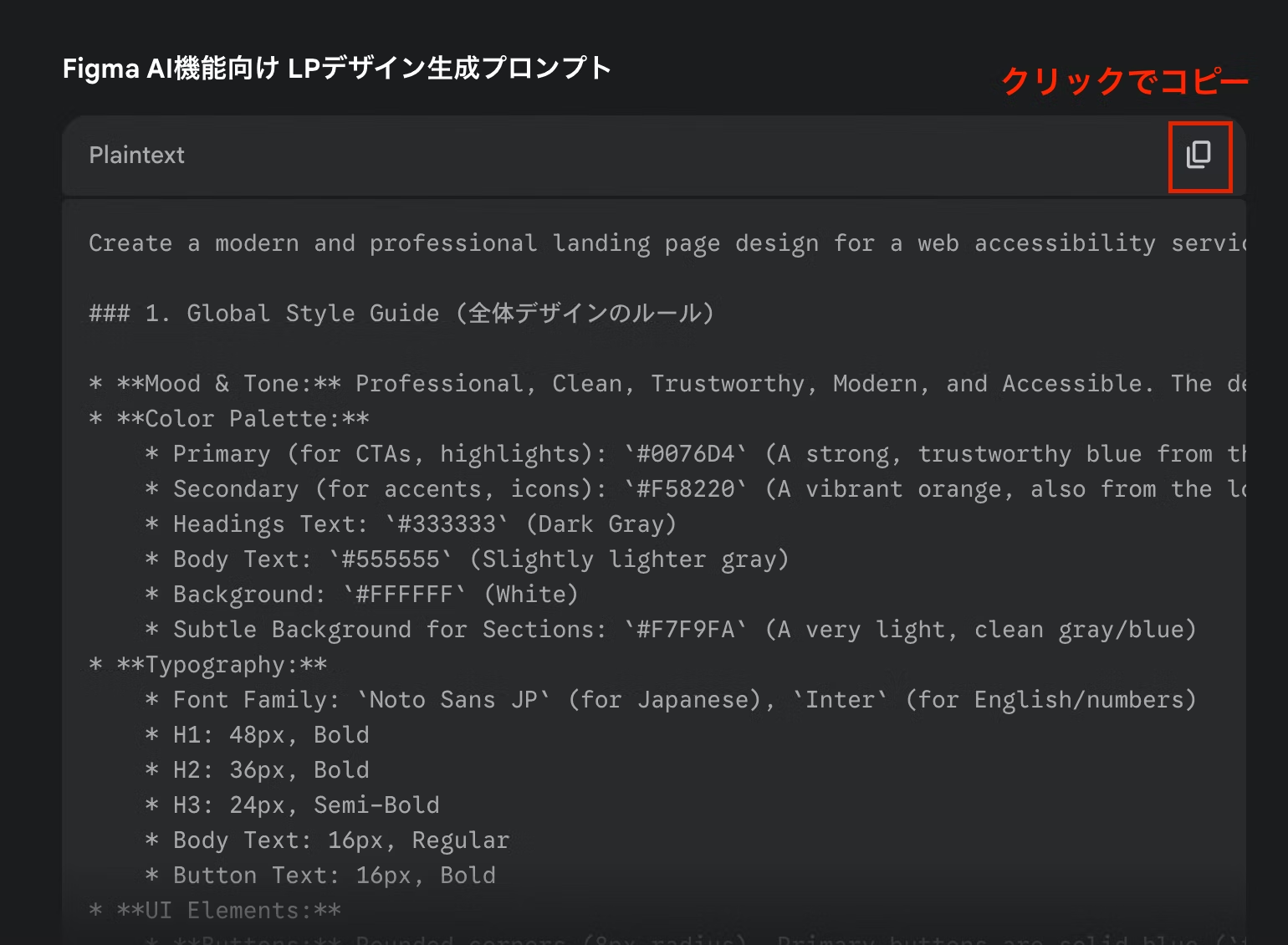

Once the text is ready, it's finally time for design! The most fun part!...but first, I need to write a "request letter" (prompt) for FigmaMake. My broken English won't cut it, so I'm relying on Gemini to handle this. I'm counting on you!
STEP 4: [Design Generation] FigmaMake, I'm counting on you! (5 min)

Copy and paste that magic spell, hit enter...and boom! Maybe we'll get a stunning design on the first try? ...Probably not. Or maybe we will? This anticipation feels like a gacha pull—kind of fun, actually.
Copy the generated prompt and click the design generation button. Those few seconds of waiting are surprisingly nerve-wracking. And then the first design appears.
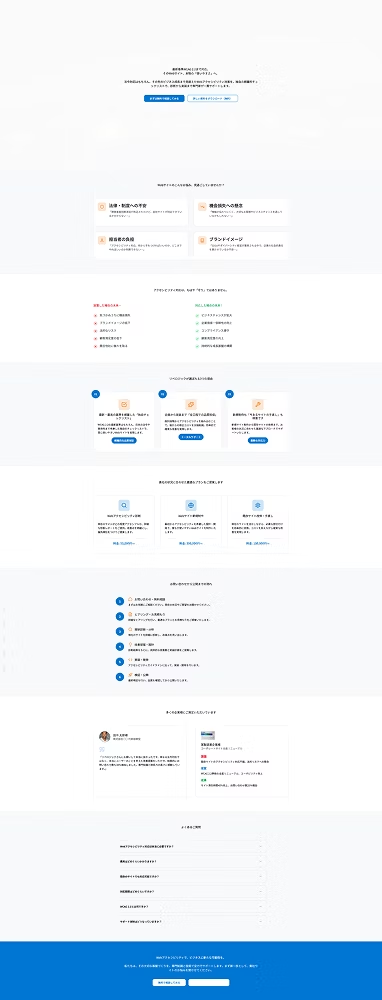
Great! It's done! But it's still pretty basic...so we'll keep iterating—adjusting the design and refining the copy.
But honestly, that's when things really got going.
STEP 5: [Iteration Loop] Refine precision through back-and-forth analysis and generation (1.5 hours)
From here, it's brainstorming time with AI. I look at the design generated by FigmaMake and ask Gemini about tweaks like "I wish it were more like this," then gradually refine the prompt through painstaking iteration.
"No, not like that!" My muttering gets louder than intended. It probably echoes through the office. But somehow, this back-and-forth rally keeps getting more fun.

Yep, it didn't pass on the first try—as expected! I kind of knew it would go that way, but I still held out a little hope. Now the real work begins: a two-person three-legged race with AI. I'm the director, Gemini's the coach, so to speak.
And here's the final output.

It's come together much more cleanly than the first draft. The hassle is removing or adding unnecessary parts—probably because I'm converting Japanese to English to give instructions, so the intent often doesn't come across clearly.
I realized FigmaMake had hit its limits, so I resorted to the brute-force approach: convert to Figma data and then make adjustments.
STEP 6: Converting to Figma – Import using the Html to Design plugin (5 min)
Once the design direction is roughly settled, it's time to move the data into Figma. Here's the process.
- First, I publish the design generated by FigmaMake as a web page.
- Then, I launch the Figma plugin "Html to Design".
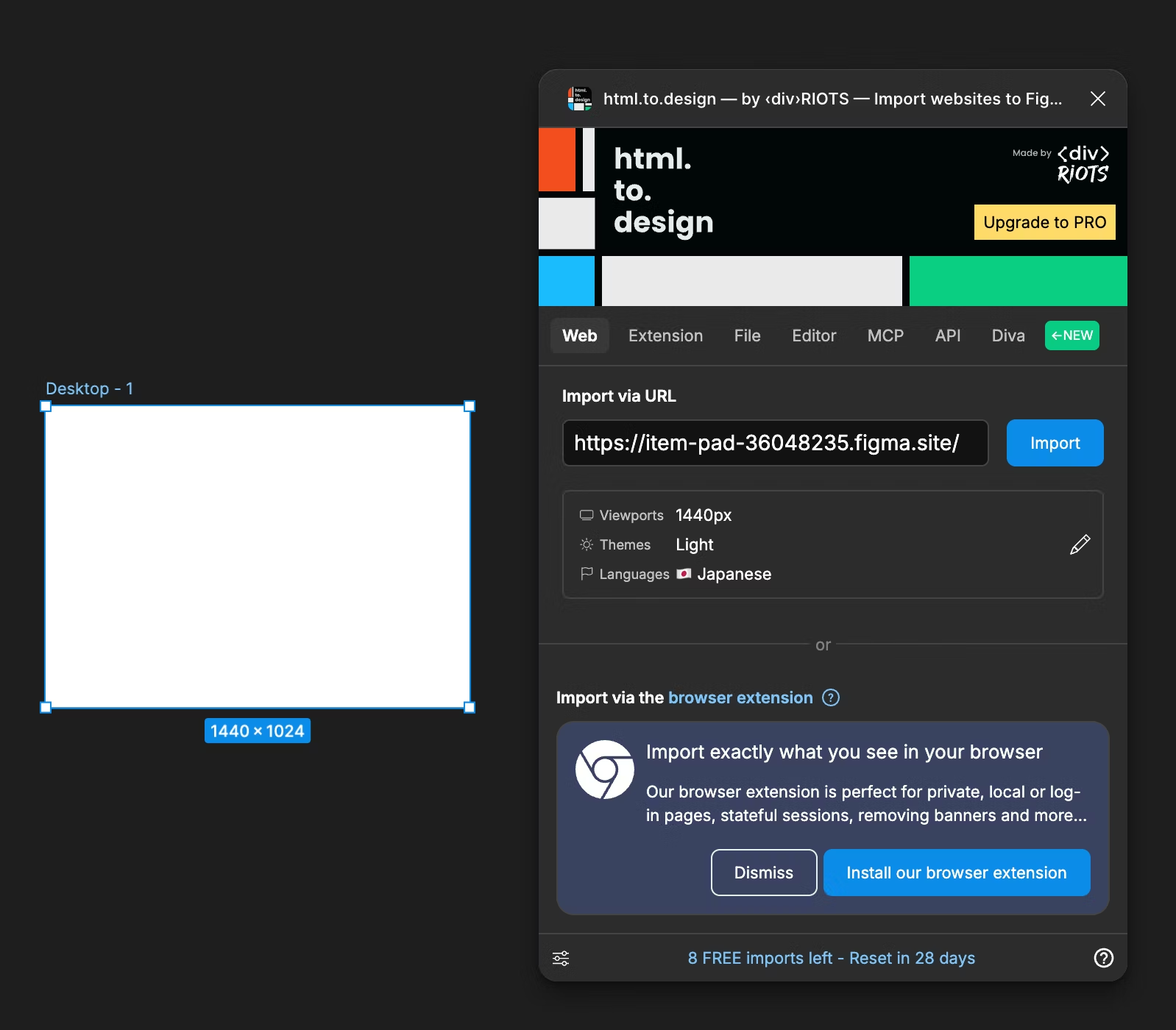
- Enter the published FigmaMake URL and run the import!
Use the plugin's "Html to Design". Copy and paste the URL of the page you published in FigmaMake, then click the button. That's all it takes to convert a web page into Figma layers—we really do live in a convenient world.
Publishing FigmaMake
First, publish your FigmaMake. Click publish and the status will switch to published.
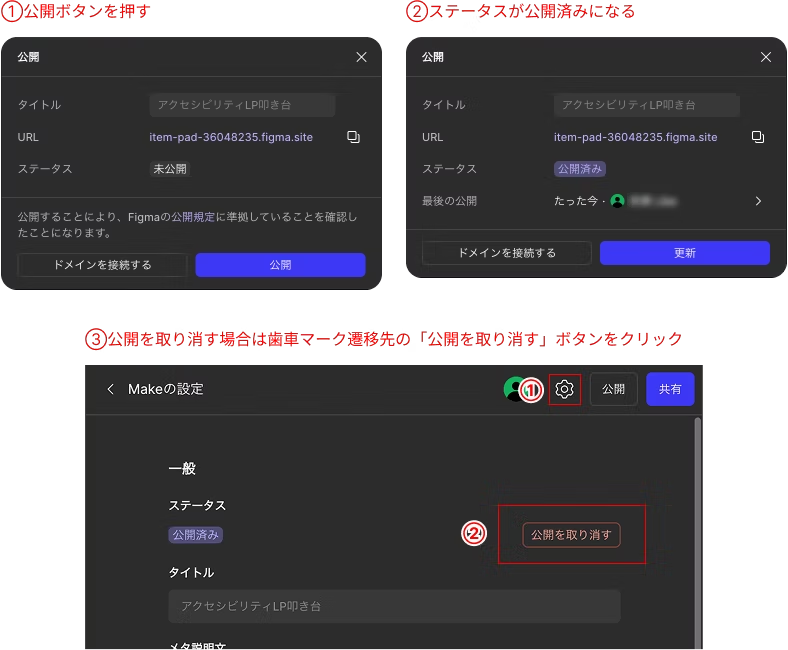
Launch the Figma plugin "Html to Design", enter the published FigmaMake URL, and run the import!
Launch the plugin and paste the URL you just obtained. Then click the import button to finish!
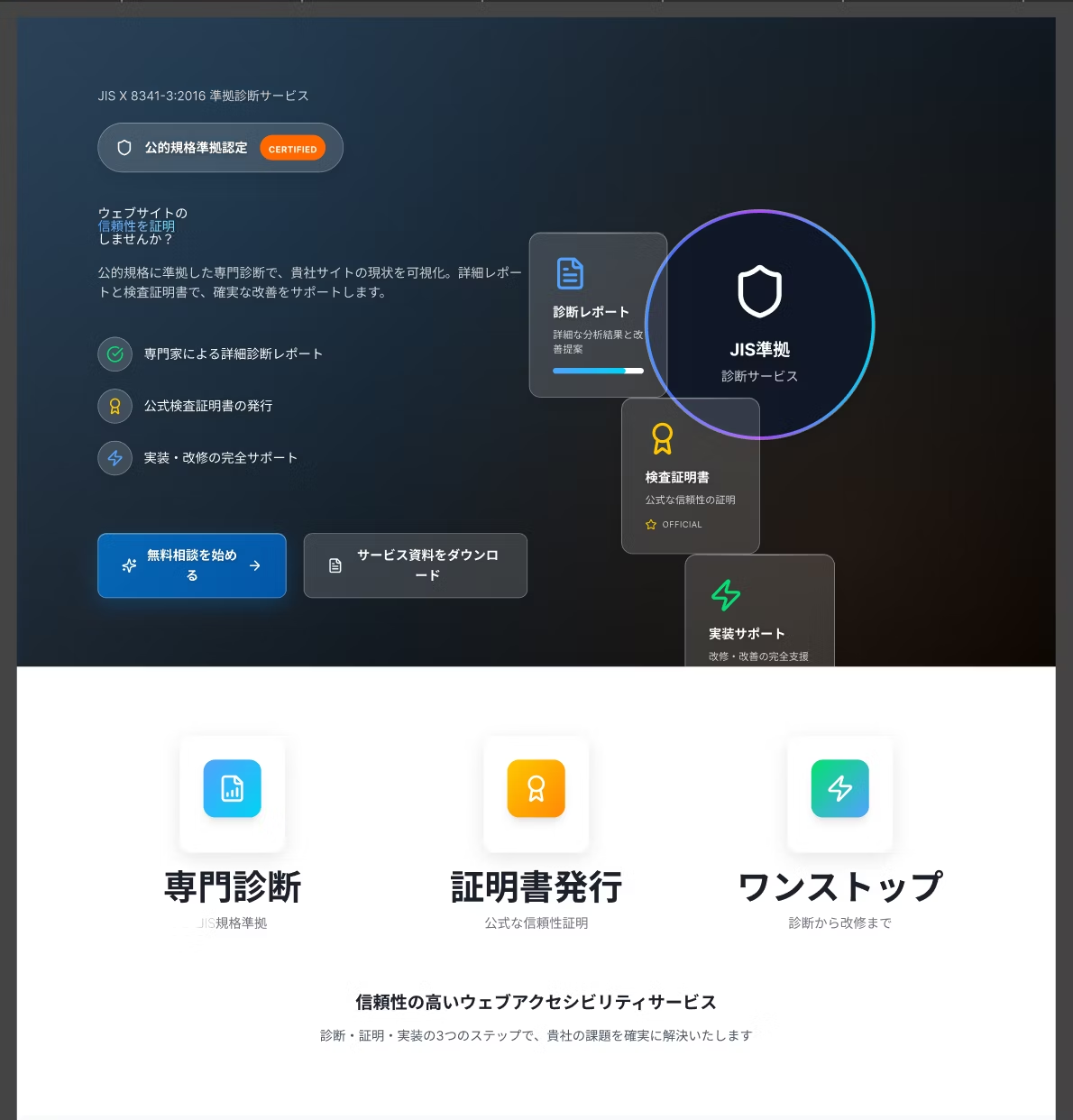
After a few minutes, the design output in Figma will appear.
Finally, set the publish status to private
Once you've finished all the steps, unpublish to return it to a private state.
Considerations
Currently, there are no features to password-protect published content or create staging environments, so care must be taken regarding information leaks when using this for corporate site redesigns and similar projects.
In general, if you're creating content limited to your own organization or building mockups using dummy information, there should be no impact. I'd recommend using it strategically depending on the project (absolutely do not use it on projects where external sharing is prohibited).

Alright, this is looking pretty good! Now it's time for my specialty—Figma. Sorry for keeping you waiting, partner!
STEP 7: [Figma Refinement] Final adjustments for layout issues (30 minutes)
The freshly imported data is still rough around the edges. There are mysterious groupings, overflowing text boxes—plenty of things that need tweaking.
From here on, it's tedious refinement work. Re-applying auto layout, converting scattered elements into components, adjusting overall spacing... These small touches elevate the design quality and transform it into a "properly polished mockup."
Here's the final result.
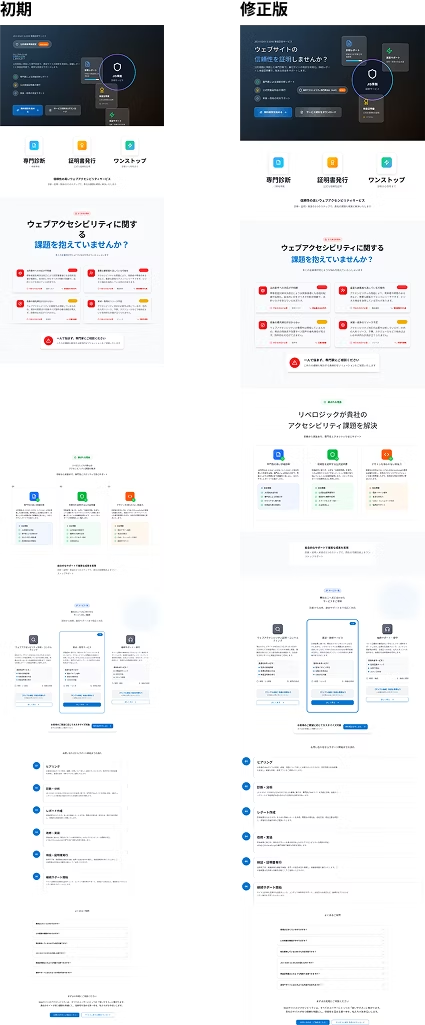
As you scroll down the LP, the design consistency does drop—whether that's an inherent limitation of AI or a shortcoming in my prompts, I'm still not sure. I'll keep experimenting to find better approaches.

Import complete. Hmm, the layout is pretty wild—more energetic than I expected! Well, that's the result of AI doing its best. My job is to clean it all up nicely from here.
Summary: Key Insights from "AI Collaborative Design" That I Discovered Through Building This
What I realized through this production process is that AI is not a "magic wand," but rather an "excellent partner."
- The time-saving effect of creating a rough draft is remarkable: it's dramatically faster than staring at a blank page trying to piece together a structure from scratch.
- The iterative feedback loop is key: creating good design requires patience to repeatedly dialogue with AI.
- The human touch at the end: quality hinges on designers intentionally refining what AI produces, rather than taking it at face value.
By the way, when I nervously showed this rough draft to the CEO... "Oh, that's interesting! This makes it much easier to move the discussion forward! Having a rough draft to work with makes all the difference—thank you!" That's what he said.

Yes! All that hard work paid off...! Tonight, the beer tastes extra good!
That's all for now! I'll finalize the design after the CEO's feedback and release it as [Part 2]!
Why not try this new approach to design creation through collaboration with AI?



UI design is constantly evolving! I'm working through how to integrate accessibility into LP design. I've been stepping away from markup lately and wondering if I should level up my JavaScript skills too. I'm a fan of Takumi Kitamura!
Hashy
Web Designer / Joined 2018 / Still a beginner at heart